
Make one work task easier
One task. A few useful tools. A clear next step.
You do not need to learn every feature. Pick the part that gets in your way and try one small change.
These examples use Divergently Browsing, our free Chrome extension. It is currently awaiting Google review. You can read the workflows now; the installation link will appear on the extension page when available.
Choose your starting point:
1. Read the information 2. Keep useful notes 3. Choose the next action
A small example to follow
Your task: read some guidance and prepare a short reply to a colleague.
Our fictional team is trying a quieter meeting format. Before the meeting, send one topic you want to discuss. During the meeting, write down decisions. Afterwards, each person confirms their next action.
That is our practice text. No real workplace documents or personal information are needed.
1. Read the information
Aim: find what you need to understand.
Choose one adjustment. Open the extension on a normal webpage. Try a reading guide if you lose your place, or increase text spacing if the words feel crowded.
Make room for the words. Try simplified view on a long article. Check it includes the passage you need; return to the original page for missing details.
Listen if useful. Try Read aloud on readable page text. Pause when you reach a useful point. You can read, listen, or combine both.
Try it: read the practice text above. What must you send before the meeting? Answer: one topic you want to discuss.
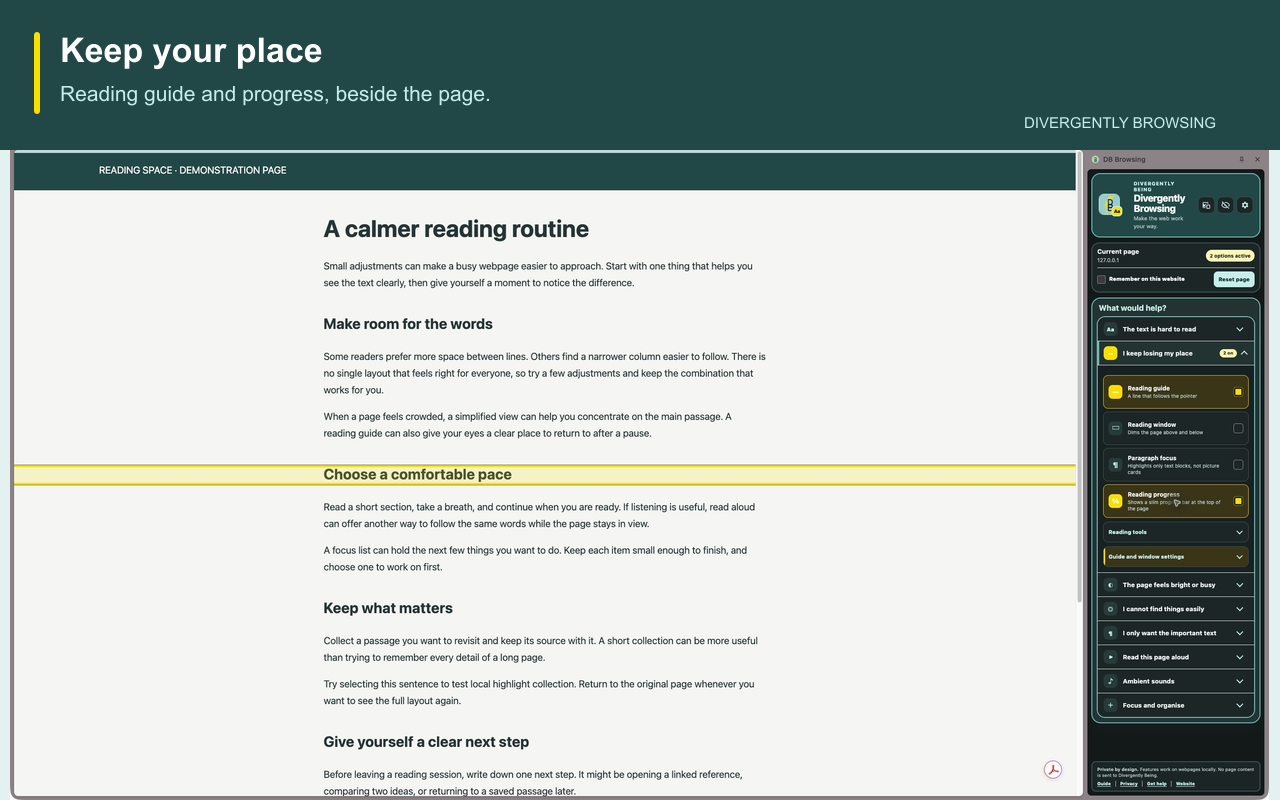
If it does not help: switch that adjustment off and try another. Simplified view depends on the website; speech voices depend on your device.
2. Keep useful notes
Aim: keep the important point and where it came from.
Choose a small passage. On the original webpage, select the sentence you need. Avoid saving the whole article.
Collect the highlight. Open Collect highlights, choose a colour and add the selection. The collection keeps the passage with its source link.
Write your own short note. In the notes app you already use, write what the passage means for your task. Keep the source link alongside it.
Try it: select “Before the meeting, send one topic you want to discuss.” Your note could be: “Send my topic before the meeting.”
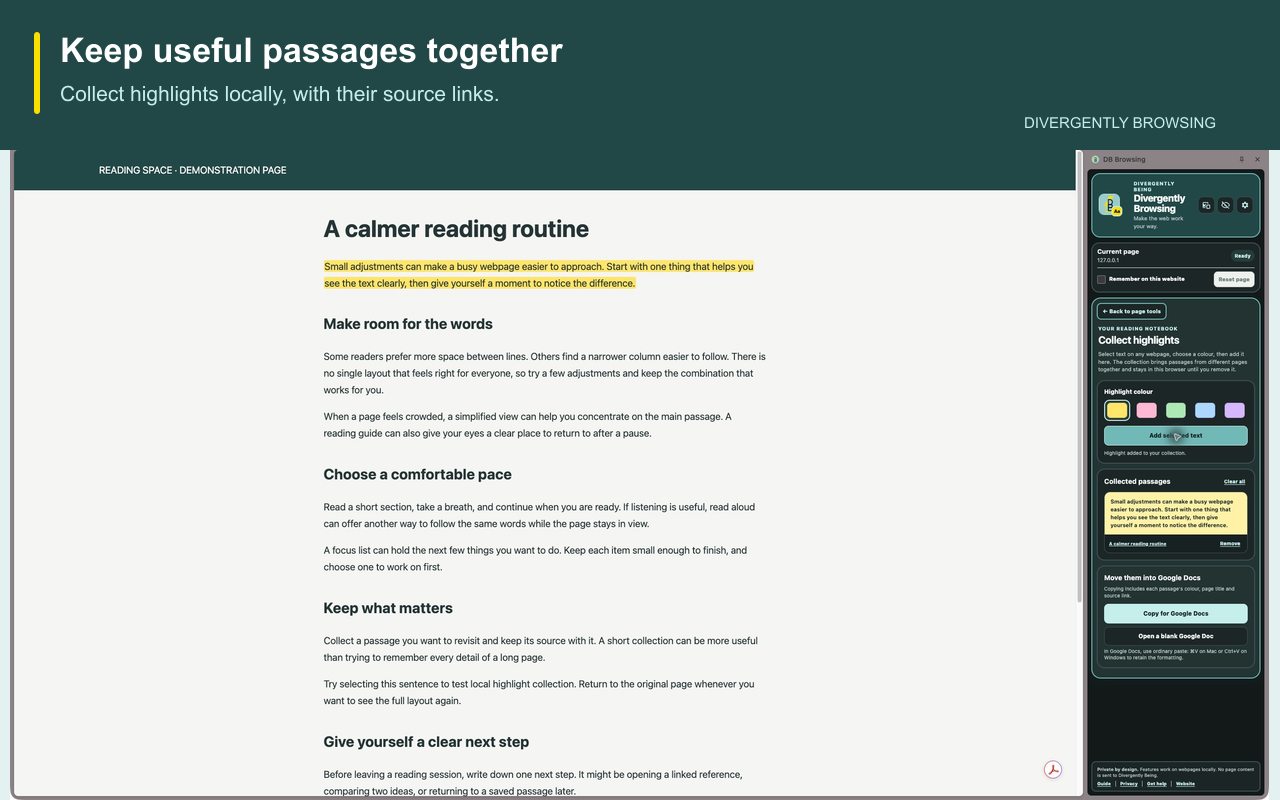
If nothing is collected: check that you selected ordinary webpage text. Images, scanned documents and embedded content may need different tools. The extension does not automatically send notes to another app.
3. Choose the next action
Aim: know what to do when you come back.
Start with a verb. Turn your note into one action: “Draft a two-sentence reply with my meeting topic.”
Make it the current focus. Add it to the extension’s Focus list for this website and select it as your current focus. The list can hold up to five items.
Work on that step. If useful, start a Focus timer. Complete the list item when finished. Put any deadline or reminder in the calendar or task app you already use.
Try it: draft your two-sentence reply. For example: “I'd like to discuss sending agendas in advance. It would help me prepare my points before the meeting.”
Keep this in mind: the Focus list belongs to a website. The timer does not block other sites or send deadline reminders.
Want help applying this to your own work?
James’s assistive technology training starts with a task you want to make easier and the software you have access to.
Remote one-to-one training is £100 per hour. We agree the scope, estimated hours and total cost before booking. Employer or funding-provider quotes are available; funding approval must be confirmed before booking on that basis.
Ask James about training or request a quote
Tell us the task and tools you want help with. You do not need to share a diagnosis.