Divergently Browsing user guide
A calmer page. A clearer place to start.
You do not need to learn every tool. Pick one thing that would help today, try it, and adjust as you go.
Where would you like to start?
First time here · Find a tool · Read aloud · Focus and highlights · Something not working?
01 / USER GUIDEGet started
- Open a webpage. Select Divergently Browsing from Chrome’s Extensions menu. The controls open in a side panel.
- Choose one tool. Open a section under What would help? Active tools show a tick.
- See how it feels. Adjust it, try another tool, or use Reset page to return webpage adjustments to their defaults.
Small first step: try a reading guide or a slightly larger text size. You can pin the extension to Chrome’s toolbar for easier access.
Before you begin: desktop Chrome 141 or later is required. Chrome’s settings pages, the extension store and other protected pages cannot be changed. Images, canvas, embedded frames and unusual page structures can affect features.
Saved highlights, focus lists and setups have their own deletion controls.
02 / USER GUIDEFind the tools that help
The text is hard to read
Adjust text size and font, add word anchors or text spacing, narrow reading lines, and align text.
I keep losing my place
Show a pointer-following reading guide, dim above and below a reading window, focus paragraphs, or show reading progress.
The page feels bright or busy
Adjust colours and tint, reduce CSS motion, remove colour from media, hide non-interactive media, stop autoplay, or hide a chosen distraction.
I cannot find things easily
Highlight text links, add a pointer halo, strengthen keyboard focus, show a text magnifier, make forms easier to spot, or navigate by page structure.
I only want the important text
Open simplified view, focus on selected text, replace images with supplied descriptions, or translate a selection.
Read this page aloud
Play, pause or stop speech, move between sentences, read a selection, and configure voice, speed or Hover to hear.
Ambient sounds
Choose a bundled background sound and adjust its volume.
Focus and organise
Use a focus timer, keep a website focus list and collect highlights.
Tools act on the webpage's existing content. Image descriptions use alternative text supplied by the website; they do not generate new descriptions. The magnifier enlarges readable text near the pointer. Reducing motion targets CSS movement, and websites may still contain other kinds of animation.
03 / USER GUIDERead in steps and simplified view
- Under I keep losing my place → Reading tools, choose one, two or three text blocks at a time.
- Choose manual progression or automatic progression, then select Start read in steps.
- Automatic steps offer 8, 12 or 18 seconds between steps.
- Changing the preparation controls does not start the reader.
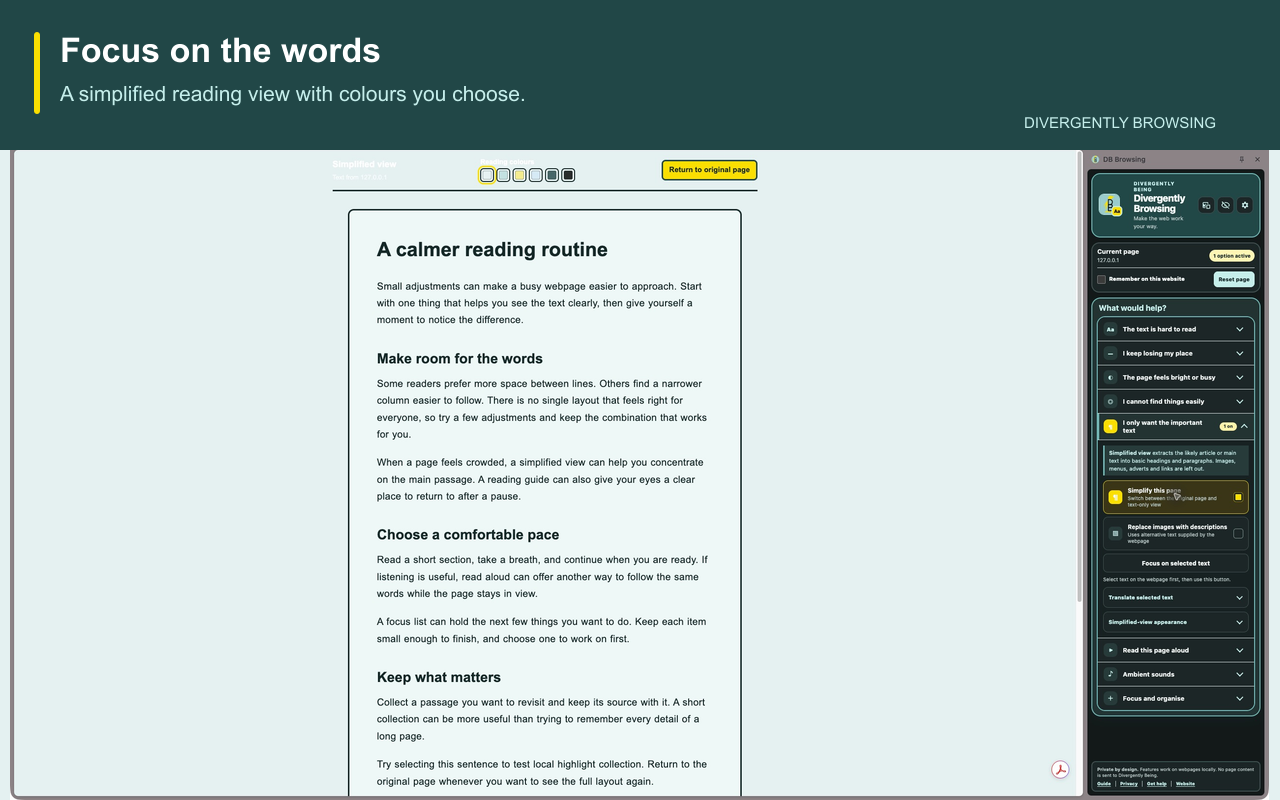
- Under I only want the important text, choose Simplify this page to extract likely main text into a reading view.
- This view omits images, menus, adverts and links.
- Choose reading colours and use Return to original page when finished.
- To read just part of a page, select the passage first and choose Focus on selected text.
Extraction relies on the structure supplied by the website. If important text is missing, return to the original page and use a selected passage instead.
04 / USER GUIDERead aloud
- Open Read this page aloud → Voice and speed.
- Choose an available voice and speed.
- Preview this voice lets you try it.
- Use Play, Pause, Previous, Next and Stop to control reading.
- To hear a passage, select text on the webpage and choose Read selected text.
Readalong highlights sentences and, where the speech engine supplies suitable timing, individual words. Voice availability and timing depend on Chrome, the operating system and installed speech engines. If a voice reports a word-timing error, try another voice.
Hover to hear reads text after you pause the pointer over it. It can interrupt page reading.
Voices labelled enhanced online may send spoken text to their provider. Use a voice labelled device or enhanced device when you want device speech. Divergently Being does not receive the spoken text or audio.
05 / USER GUIDETranslate a passage
- Select text on the webpage.
- Open I only want the important text → Translate selected text, choose the source and target languages, and select the translate control.
- Chrome may need to download a language model the first time.
- Translation depends on Chrome's built-in on-device Translator support and the language pair.
- Use Restore translated passages to remove translations from the current page.
06 / USER GUIDEAmbient sounds
Choose Brown, White or Pink noise; Rain, Waves, Forest, Birdsong or Fire; Train, Plane cabin or Car journey; Café or Quiet library. Select Play and adjust Ambient volume. Use the same control to pause playback.
The MP3 files are bundled with the extension. Playback works offline and continues when you hide the controls or switch to the floating toolbar. Hiding the controls is not a stop command. Sounds do not start automatically on browser startup.
07 / USER GUIDEFloating toolbar and restore tab
- Use Undock to floating toolbar in the panel header.
- Drag its handle to move it and use its orientation control for horizontal or vertical layout.
- Choose Return to side panel to dock it again.
- Hide Divergently Browsing leaves a yellow restore tab at the edge of the webpage.
- Drag the tab up or down using its dark handle.
- Click it to restore the controls.
- Chrome's toolbar action also opens the panel.
08 / USER GUIDERemember settings and save setups
Select Remember on this website to store that website's origin and chosen accessibility settings locally. Clear the checkbox on that website to forget its remembered settings.
- Open the header Settings control to change panel theme, control size and floating toolbar direction.
- Under Saved setups, give a setup a name and save it.
- Choose a saved setup to load it or use Delete to remove it.
- A saved setup is distinct from remembering settings for one website.
09 / USER GUIDEFocus and highlights
A Focus timer puts a visible timer on the current webpage and pauses page motion. It does not block other websites or track browsing history.
- A Focus list holds up to five items for a website.
- Add an item and choose it as the current focus to show it on the page.
- Complete or remove items using their controls; Clear completed removes completed items.
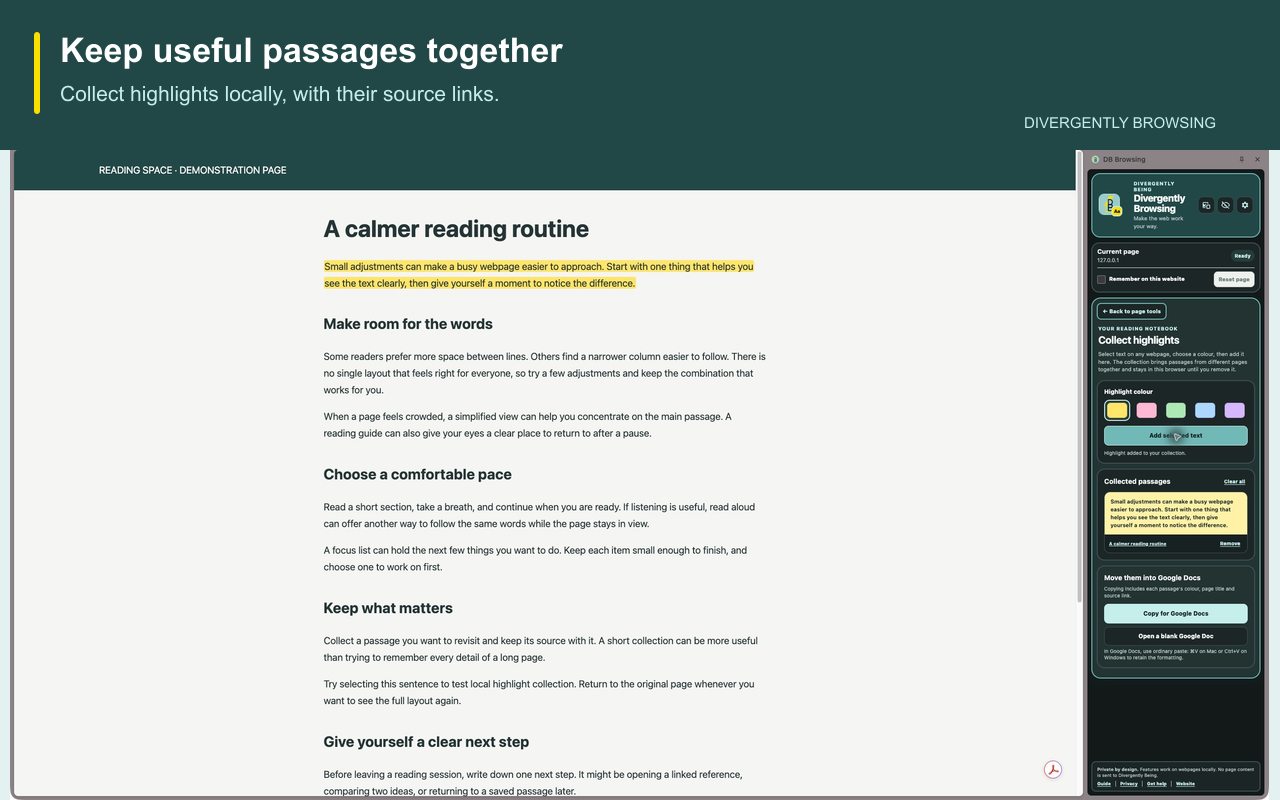
- To Collect highlights, select text on the webpage, choose a colour and add it to the collection.
- Each saved passage includes its page title, source address, colour and date.
- Remove a passage individually or use Clear all for the collection.
- Copy for Google Docs puts a formatted copy on your clipboard.
- Open a blank Google Doc opens docs.new.
- Paste normally with Command+V on Mac or Ctrl+V on Windows.
- This does not automatically upload your collection or give the extension access to your Google account.
10 / USER GUIDEKeyboard shortcuts
- Toggle reading guide
Alt/Option + Shift + G - Toggle simplified view
Alt/Option + Shift + S - Start or stop read aloud
Alt/Option + Shift + A - Reset webpage adjustments
Alt/Option + Shift + R
If a shortcut conflicts with another application or extension, change it in Chrome at chrome://extensions/shortcuts. Use Tab and Shift+Tab to navigate controls; Enter or Space activates focused controls as appropriate.
11 / USER GUIDEPrivacy and removal
Preferences, saved setups, remembered website settings, focus lists and collected highlights are stored in Chrome's local extension storage. They are not sent to Divergently Being. The extension does not run advertising or analytics or require an account.
Use the relevant deletion controls to remove saved content. Uninstalling the extension removes its local extension storage. Reset page restores webpage adjustments; it does not erase every saved collection or preference. See the extension privacy notice for speech-provider, translation and external-link details.
12 / USER GUIDETroubleshooting
- This page cannot be changed: Try an ordinary HTTP or HTTPS webpage. Chrome protects some pages.
- The controls are missing: Click the yellow restore tab or select the extension from Chrome's toolbar.
- Changes are not visible: Refresh the webpage, then select the extension again. Check whether a different tab is active.
- No readable text was found: Try a substantial article, select a passage, or use simplified view. Some pages contain text outside the structures the reader recognises.
- Speech stops or word timing fails: Try another installed device voice. Hover to hear can interrupt Read Aloud.
- Translation is unavailable: Check desktop Chrome support and the requested language pair. A model download may be needed.
- Sound continues after hiding the panel: Restore the controls and pause it under Ambient sounds.
- A website looks wrong: Choose Reset page, then try adjustments one at a time.
For help, email info@divergentlybeing.co.uk. Describe the problem, your Chrome and operating-system versions, the feature involved and a public example page if available. Avoid including private webpage content in a support message unless you choose to share it.
Guide for version 1.0.12 · Updated 10 October 2026.